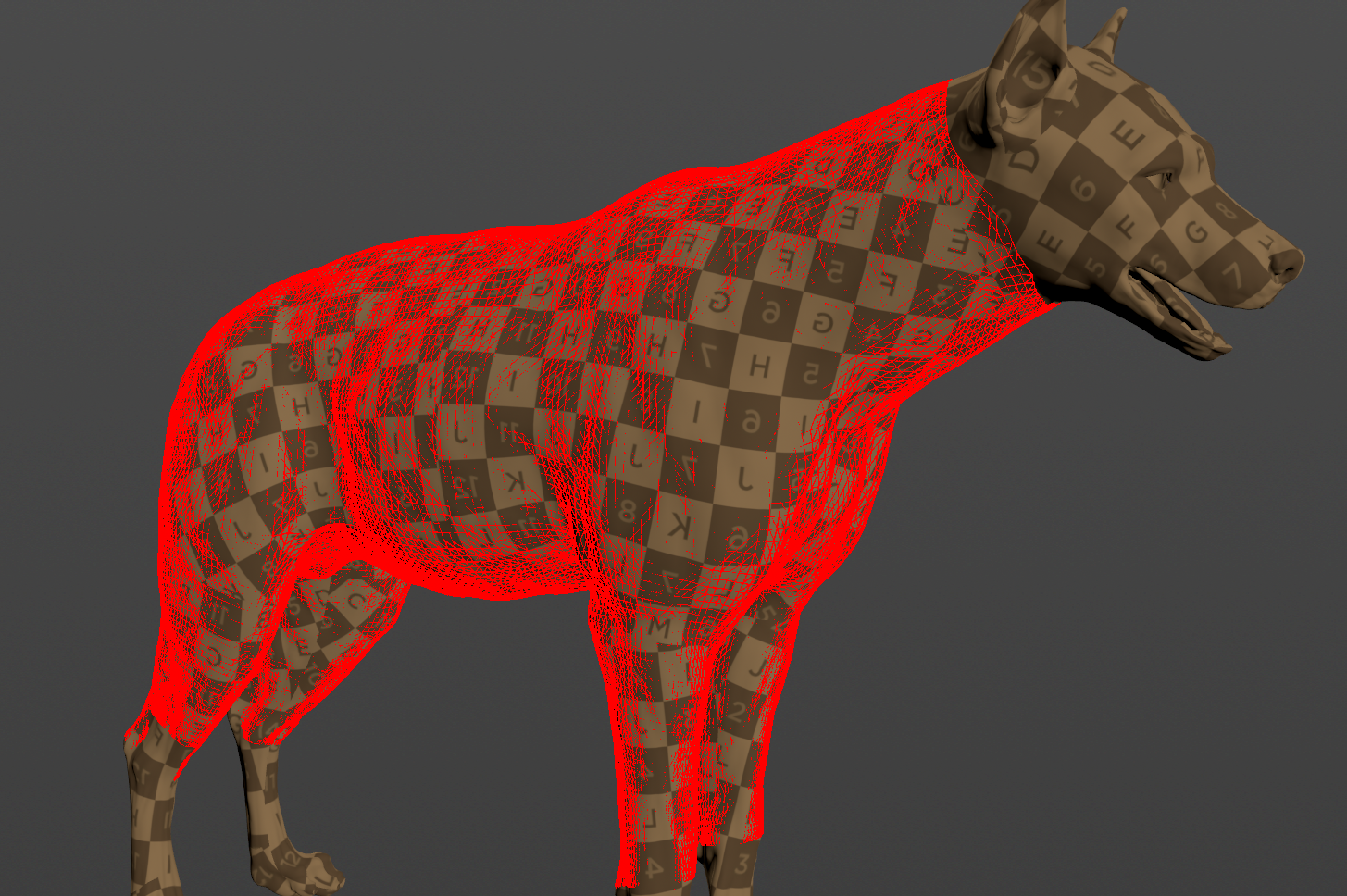
AdnSmartTissue is a Houdini SOP designed to generate skin dynamics and soft tissue effects without requiring the creation and simulation of complex anatomical structures such as muscles, fascia, or fat layers.
Instead of relying on pre-built internal anatomy, AdnSmartTissue automatically generates a procedural volumetric structure beneath the input surface. This structure is created from an inner mesh, whose shape and depth can be controlled through the push attributes and further refined by applying relaxation. The resulting volume is then simulated by computing: 1) volume constraints to make it resistant to compression and expansion; 2) volume shape preservation constraints to make the internal volume resistant to deformation; 3) hard constraints to attach the borders of the mesh to the base mesh; and 4) shape preservation constraints to preserve the original shape between connected vertices.
AdnSmartTissue can also leverage an Adonis ML model trained with muscle activation data to dynamically modulate tissue stiffness across the surface. During evaluation, the solver infers an activation value for each skin vertex that is then remapped between the user-defined Min Stiffness and Max Stiffness limits and applied to the solver constraints. This allows the simulated tissue to locally vary its resistance to deformation, emulating the effect of underlying muscles beneath the skin.
AdnSmartTissue can be used as a standalone skin dynamics solution on top of any animated mesh, or as a complementary simulation layer on top of an AdnMLDeformer setup to enhance the visual richness and realism of the final deformation.
The AdnSmartTissue can be used with an FX license. However, an Adonis ML license is required to generate the Adonis ML model required by this deformer.
The AdnSmartTissue SOP is easy to create and configure in Houdini. The deformer requires an input mesh, typically the animated skin, output of a Bone Deform. This mesh may already have an AdnMLDeformer applied, although this is not required.
Apart from the inputs required, there are also other aspects to be satisfied for this deformer to produce the expected results:
The Bone Deform node must exist in the deformable chain of the geometry to apply the AdnSmartTissue to.
The name of the Bone Deform node must follow a fixed naming convention: "<GEO_NAME>_bonedeform".
The input geometry and the Bone Deform node must be the same used in the data extraction process when a ML Model and Joints file are provided to AdnSmartTissue.
The geostream containing the KineFX joints. This stream must include the name and localtransform per-point attributes to enable the ML features.
The deformation mode of the Bone Deform must be Linear.
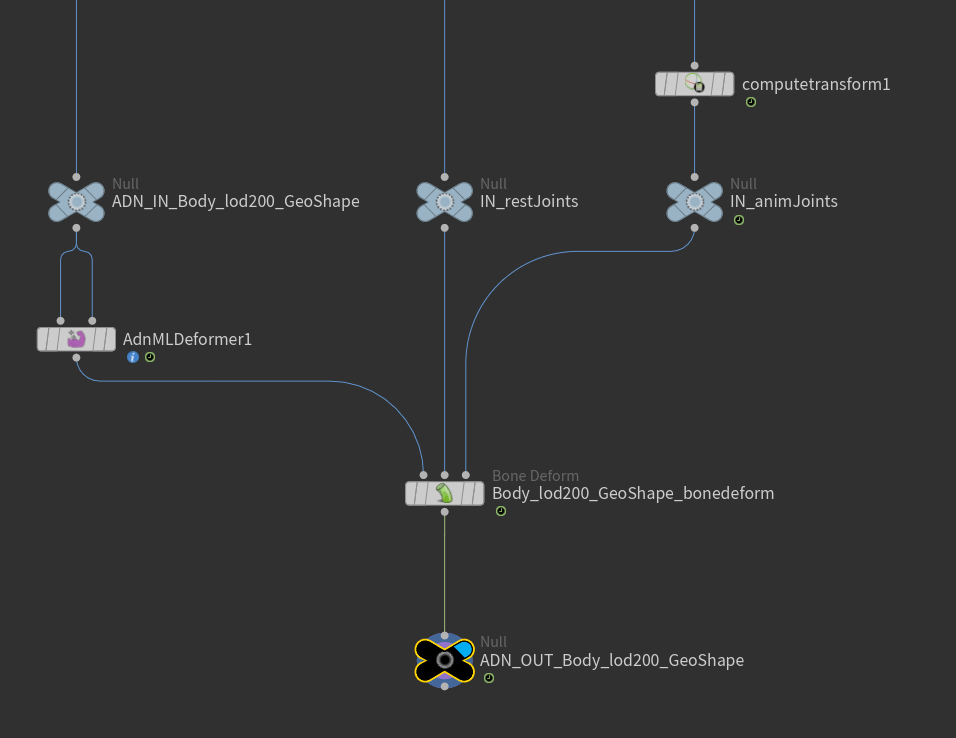
The "ADN_IN_<GEO_NAME>" and "ADN_OUT_<GEO_NAME>" null nodes must be present and encapsulate the Bone Deform node for the creator and editor utils to work properly.
Figure 1: Example setup of the network to create an AdnSmartTissue in Houdini with ML features.
To create and configure the deformer:
Select Null node (typically named as "ADN_OUT_<GEO_NAME>") that is the output of the Bone Deform node which is deforming the skin mesh, and the node with the animated joints.
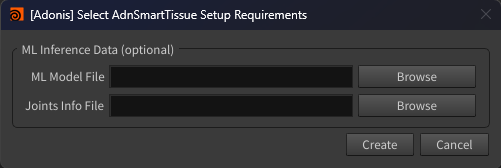
Press Smart Tissue in the Adonis menu.
Figure 2: Simple UI to ease the creation and configuration of AdnSmartTissue.
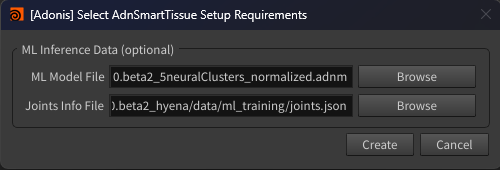
Optionally, provide the following inputs in the UI to enable the ML features:
The path to an ML Model file (.adnm) trained with muscle activation generated by the AdnNeuralTraining TOP.
The path to a Joints Info file (.json) generated by the AdnMLDataExtraction TOP.
Figure 3: UI to create AdnSmartTissue with the model and joints files provided.
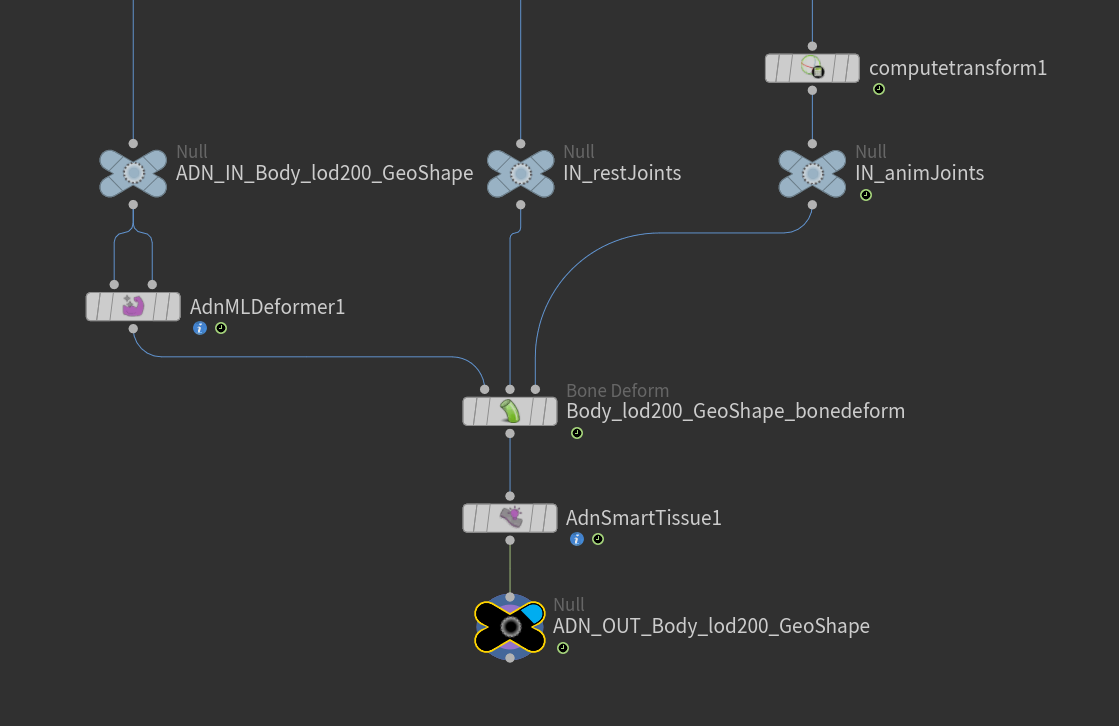
Press Create to apply AdnSmartTissue to the mesh selected.
Figure 4: Resulting network after creating the AdnSmartTissue SOP.
NOTE
If the ML Model provided was not trained with muscle activation data, the inferred activation for all vertices will be 0 and the effective stiffness applied to the constraints will be the value specified in Min Stiffness.
Creating the node manually is also possible in the Network View through Adonis > Deformer > AdnSmartTissue.
In that case, the ML Model path and the list of ML Inputs (KineFX joints) can also be populated afterwards from the same UI by selecting the AdnSmartTissue plus the geometry with the KineFX joints and launching Adonis > ML Deformer.
The use of this UI is recommended to ensure that the list of ML Inputs is consistent with the Adonis ML Model.
Machine learning dependencies are installed inside the Adonis installation directory rather than system-wide. As a result, the system environment remains unchanged and no global Python packages are installed.
(Windows Only) ML inference will run on the GPU if the ML Dependencies have been previously installed. If not, the ML inference is performed on the CPU. Please, learn how to install the dependencies in this section on the Installation page.
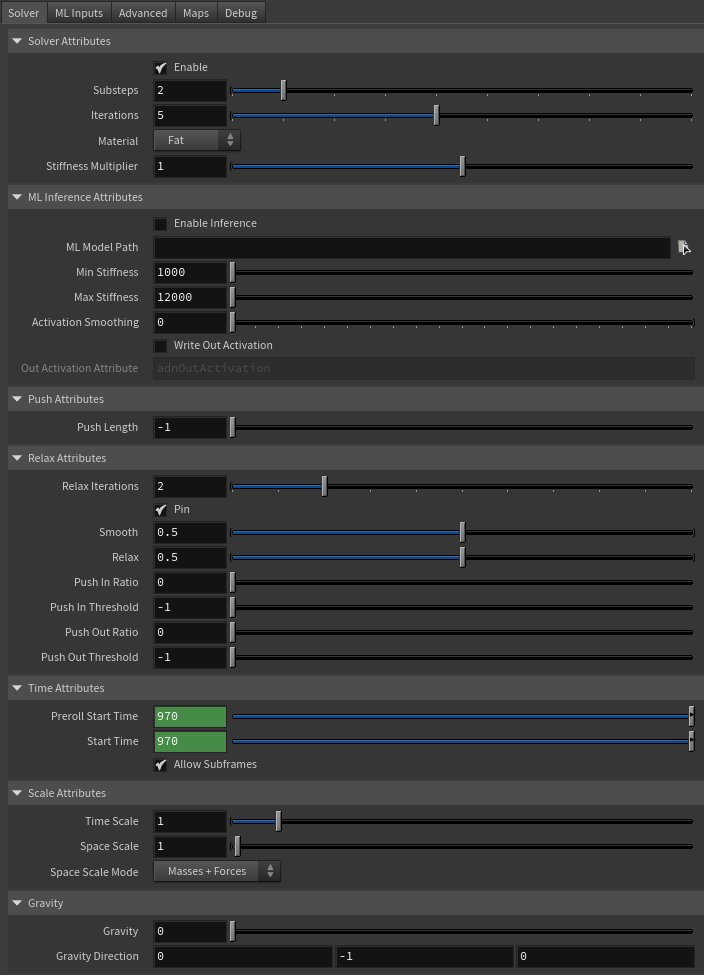
Flag to enable or disable the deformer computation.
Substeps
Integer
2
✓
Number of steps that the solver will execute per simulation frame. Greater values mean greater computational cost. Has a range of [1, 10]. The upper limit is soft, higher values can be used.
Iterations
Integer
5
✓
Number of iterations that the solver will execute per simulation step. Greater values mean greater computational cost. Has a range of [1, 10]. The upper limit is soft, higher values can be used.
Material
Enumerator
Fat
✓
Solver stiffness presets per material. The materials are listed from lowest to highest stiffness. There are 8 different presets: Fat: 103, Muscle: 5e3, Rubber: 106, Tendon: 5e7, Leather: 108, Wood: 6e9, Skin: 12e3.
Stiffness Multiplier
Float
1.0
✓
Multiplier factor to scale up or down the material stiffness. Has a range of [0.0, 2.0]. The upper limit is soft, higher values can be used.
Stiffness value to apply to vertices with zero inferred activation. Has a range of [0.0, 1e12]. The upper limit is soft, higher values can be used.
ML Max Stiffness
Float
12000.0
✓
Stiffness value to apply to vertices with maximum inferred activation. Has a range of [0.0, 1e12]. The upper limit is soft, higher values can be used.
ML Activation Smoothing
Integer
0
✗
Number of iterations for the activation smoothing algorithm. The greater the number, the smoother the activations will be. Has a range of [0, 10]. The maximum value allowed is 20.
Write Out ML Activation
Boolean
False
✓
If enabled, it writes the per-point ML inferred activation to the adnOutActivation point attribute in the geostream. The values written have the ML activation smoothing and the activation paintable weights applied.
Length of the push to apply to build the inner mesh. A positive value pushes the vertices along the direction of the normal, while a negative value pushes them in the opposite direction. Has a range of [-1.0, 1.0]. The upper and lower limits are soft; higher or lower values can be used.
Number of iterations of the relaxation algorithm. Greater values mean greater computational cost. Has a range of [1, 10]. The upper limit is soft, higher values can be used.
Pin
Boolean
False
✓
Flag to pin the vertices on the boundaries.
Smooth
Float
0.5
✓
Amount of smoothing to apply. Has a range of [0.0, 1.0].
Relax
Float
0.5
✓
Amount of relaxation to apply. Has a range of [0.0, 1.0].
Push In Ratio
Float
0.0
✓
Amount of correction applied by the push in adjustment. Has a range of [0.0, 2.0]. The upper limit is soft, higher values can be used.
Push In Threshold
Float
-1.0
✓
Maximum correction applied by the push in adjustment. The threshold will be ignored if its value is 0.0 or less. Has a range of [-1.0, 2.0]. The upper limit is soft, higher values can be used.
Push Out Ratio
Float
0.0
✓
Amount of correction applied by the push out adjustment. Has a range of [0.0, 2.0]. The upper limit is soft, higher values can be used.
Push Out Threshold
Float
-1.0
✓
Maximum correction applied by the push out adjustment. The threshold will be ignored if its value is 0.0 or less. Has a range of [-1.0, 2.0]. The upper limit is soft, higher values can be used.
Sets the scaling factor applied to the simulation time step. Has a range of [0.0, 2.0]. The upper limit is soft, higher values can be used.
Space Scale
Float
1.0
✓
Sets the scaling factor applied to the masses and/or the forces (e.g. gravity). Adonis interprets the scene units in centimeters. If modeling your creature you apply a scaling factor for whatever reason (e.g. to avoid precision issues in Maya), you will have to adjust for this scaling factor using this attribute. If your character is supposed to be 170 units tall, but you prefer to model it to be 17 units tall, then you will need to set the space scale to a value of 10. This will ensure that your 17 units creature will simulate as if it was 170 units tall. Has a range of [0.0, 2.0]. The upper limit is soft, higher values can be used.
Space Scale Mode
Enumerator
Masses + Forces
✓
Determines if the spatial scaling affects the masses, the forces, or both. The available options are:
Masses: The Space Scale only affects masses.
Forces: The Space Scale only affects forces.
Masses + Forces: The Space Scale affects masses and forces.
Sets the magnitude of the gravity acceleration in m/s2. The value is internally converted to cm/s2. Has a range of [0.0, 100.0]. The upper limit is soft, higher values can be used.
Gravity Direction
Float3
{0.0, -1.0, 0.0}
✓
Sets the direction of the gravity acceleration. Vectors introduced do not need to be normalized, but they will get normalized internally.
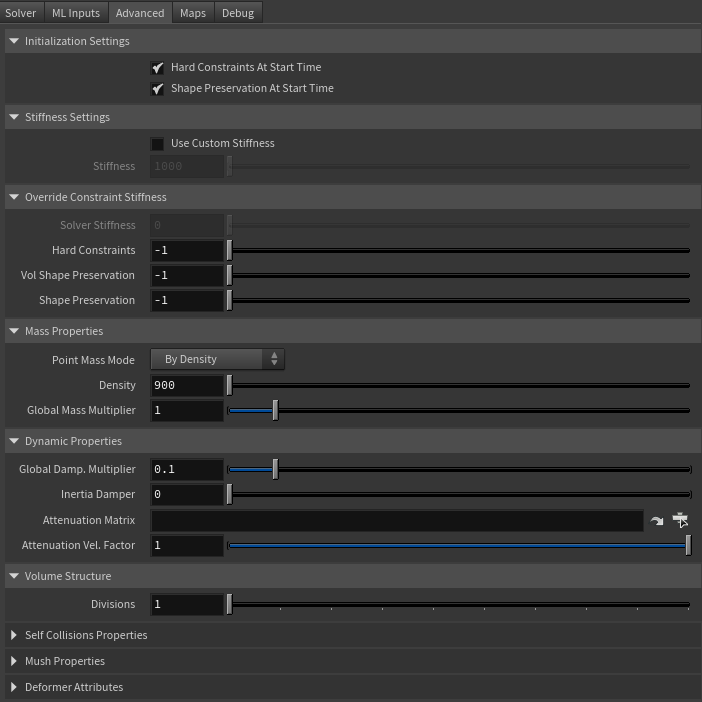
Flag that forces the hard constraints to reinitialize at start time. This attribute has effect only if preroll start time is lower than start time.
Shape Preservation At Start Time
Boolean
True
✗
Flag that forces the shape preservation constraints to reinitialize at start time. This attribute has effect only if preroll start time is lower than start time.
Stiffness Settings
Name
Type
Default
Animatable
Description
Use Custom Stiffness
Boolean
False
✓
Toggles the use of a custom stiffness value. If custom stiffness is used, Material and Stiffness Multiplier will be disabled and Stiffness will be used instead.
Stiffness
Float
105
✓
Sets the custom stiffness value. Its value must be greater than 0.0.
Override Constraint Stiffness
Name
Type
Default
Animatable
Description
Solver Stiffness
Float
0.0
✗
Shows the global stiffness value currently used by the solver.
Hard Constraints
Float
-1.0
✓
Sets the stiffness override value for hard constraints. If the value is less than 0.0, the global stiffness will be used. Otherwise, this custom stiffness will override the global stiffness. Has a range of [0.0, 1012]. The upper limit is soft, higher values can be used.
Volume Shape Preservation
Float
-1.0
✓
Sets the stiffness override value for the volume shape preservation constraints. If the value is less than 0.0, the global stiffness will be used. Otherwise, this custom stiffness will override the global stiffness. Has a range of [0.0, 1012]. The upper limit is soft, higher values can be used.
Shape Preservation
Float
-1.0
✓
Sets the stiffness override value for the shape preservation constraints. If the value is less than 0.0, the global stiffness will be used. Otherwise, this custom stiffness will override the global stiffness. Has a range of [0.0, 1012]. The upper limit is soft, higher values can be used.
NOTE
Providing a stiffness override value of 0.0 will disable the computation of that constraint.
Mass Properties
Name
Type
Default
Animatable
Description
Point Mass Mode
Enumerator
By Density
✓
Defines how masses should be used in the solver.
By Density allows to estimate the mass value by multiplying Density * Area.
By Uniform Value allows to set a uniform mass value.
Density
Float
900.0
✓
Sets the density value in kg/m3 to be able to estimate mass values with By Density mode. The value is internally converted to g/cm3. Has a range of [0.001, 106]. Lower and upper limits are soft, lower and higher values can be used.
Global Mass Multiplier
Float
1.0
✓
Sets the scaling factor applied to the mass of every point. Has a range of [0.001, 10.0]. Lower and upper limits are soft, lower and higher values can be used.
Dynamic Properties
Name
Type
Default
Animatable
Description
Global Damping Multiplier
Float
0.1
✓
Sets the scaling factor applied to the global damping of every point. Has a range of [0.0, 1.0]. The upper limit is soft, higher values can be used.
Inertia Damper
Float
0.0
✓
Sets the linear damping applied to the dynamics of every point. Has a range of [0.0, 1.0]. The upper limit is soft, higher values can be used.
Attenuation Matrix
String
✓
Object path of the node to extract the transformation matrix from to compute the velocity attenuation.
Attenuation Velocity Factor
Float
1.0
✓
Sets the weight of the attenuation applied to the velocities of the simulated vertices driven by the Attenuation Matrix. Has a range of [0.0, 1.0]. The upper limit is soft, higher values can be used.
Volume Structure
Name
Type
Default
Animatable
Description
Divisions
Integer
1
✗
Sets the number of divisions to create in the internal volume. The lower this value is, the faster the solver computes. Has a range of [1, 10]. The upper limit is soft, higher values can be used.
Self Collisions Properties
Name
Type
Default
Animatable
Description
Self Collisions
Boolean
False
✓
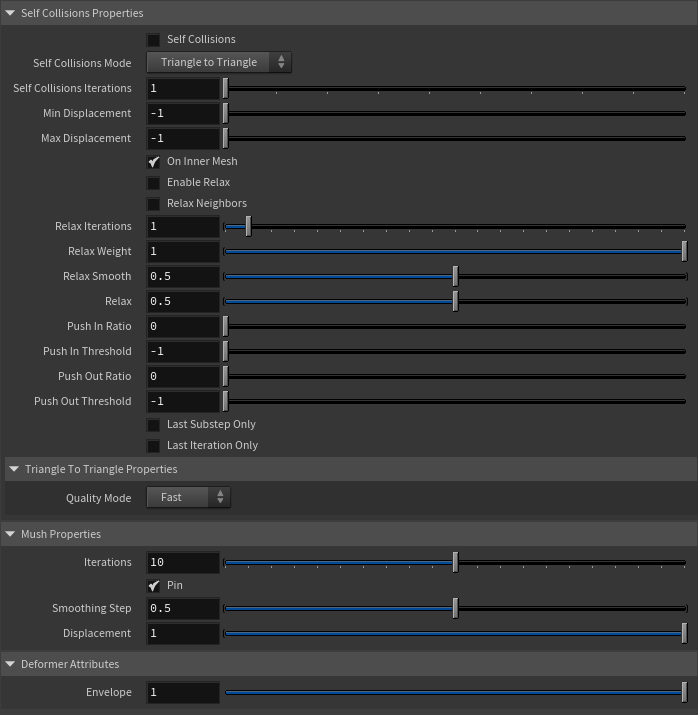
Toggles the self collisions on and off.
Self Collisions Mode
Enumerator
Triangle to Triangle
✓
Determines the method used for self-collision detection and response. Only Triangle to Triangle mode is available.
Self Collisions Iterations
Integer
1
✓
Sets the number of iterations for the self-collision correction. Has a range of [1, 10]. The upper limit is soft, higher values can be used.
Min Displacement
Float
-1.0
✓
Sets the minimum displacement a point must have to be considered for self-collision correction. Below this value, no correction will be applied. A value of -1.0 disables this check. Has a range of [-1.0, 1000.0]. The upper limit is soft, higher values can be used.
Max Displacement
Float
-1.0
✓
Sets the maximum displacement a point can have to be considered for self-collision correction. Above this value, no correction will be applied. A value of -1.0 disables this check. Has a range of [-1.0, 1000.0]. The upper limit is soft, higher values can be used.
On Inner Mesh
Boolean
True
✓
Toggles the solving of self-collisions in the inner mesh. If disabled, self-collision corrections are applied on the outer simulated mesh only.
Enable Relax
Boolean
False
✓
Toggles the relaxation process for self collision affected points.
Relax Neighbors
Boolean
False
✓
Sets if the relaxation process for self collisions should also consider the neighboring points that were detected in the self collision corrections.
Relax Iterations
Integer
1
✓
Sets the number of iterations to compute for self collision affected points. Smoothing and relaxation are applied in each iteration, while pushing in and pushing out are applied only in the last iteration. Has a range of [0, 20]. The upper limit is soft, higher values can be used.
Relax Weight
Float
1.0
✓
Influence of the smoothing and relaxation for self collision affected points. Has a range of [0.0, 1.0].
Relax Smooth
Float
0.5
✓
Amount of smoothing to apply for self collision affected points. Has a range of [0.0, 1.0].
Relax
Float
0.5
✓
Amount of relaxation to apply for self collision affected points. Has a range of [0.0, 1.0].
Push In Ratio
Float
0.0
✓
Amount of correction applied by the push in adjustment for self collision affected points. Has a range of [0.0, 2.0]. The upper limit is soft, higher values can be used.
Push In Threshold
Float
-1.0
✓
Maximum correction applied by the push in adjustment for self collision affected points. The threshold will be ignored if its value is 0.0 or less. Has a range of [-1.0, 2.0]. The upper limit is soft, higher values can be used.
Push Out Ratio
Float
0.0
✓
Amount of correction applied by the push out adjustment for self collision affected points. Has a range of [0.0, 2.0]. The upper limit is soft, higher values can be used.
Push Out Threshold
Float
-1.0
✓
Maximum correction applied by the push out adjustment for self collision affected points. The threshold will be ignored if its value is 0.0 or less. Has a range of [-1.0, 2.0]. The upper limit is soft, higher values can be used.
Last Substep Only
Boolean
False
✗
If enabled, self-collisions are only computed in the last substep of the simulation.
Last Iteration Only
Boolean
False
✗
If enabled, self-collisions are only computed in the last iteration of each substep.
Quality Mode
Enumerator
Quality
✓
Sets the quality mode for self-collision detection.
Quality is more accurate, recommended for final results.
Fast provides higher performance, recommended for preview.</
Mush Properties
Name
Type
Default
Animatable
Description
Iterations
Integer
10
✓
Number of smoothing iterations applied by the algorithm. Greater values produce smoother results at the expense of additional computational cost. Has a range of [0, 20]. The upper limit is soft, higher values can be used.
Pin
Boolean
True
✓
Flag to pin the vertices on the boundaries.
Smoothing Step
Float
0.5
✓
Amount of smoothing applied at each iteration. Has a range of [0.0, 1.0].
Displacement
Float
1.0
✓
Controls how much of the computed displacement is applied to the geometry. Has a range of [0.0, 1.0].
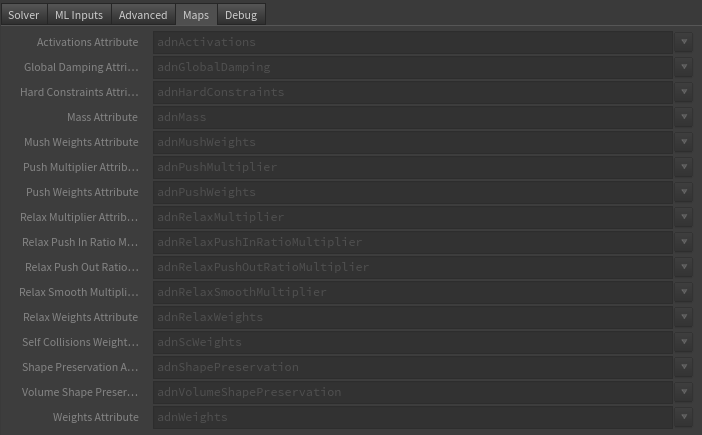
Specifies the name of the per-point attribute to read activation weights from. The expected attribute name is adnActivations. The expected range of the per-point values is [0.0, 1.0].
Global Damping Attribute
float
1.0
✗
Specifies the name of the per-point attribute to read the global damping values from. The expected attribute name is adnGlobalDamping. The expected range of the per-point values is [0.0, 1.0].
Hard Constraints Attribute
float
1.0
✗
Specifies the name of the per-point attribute to read the hard weights from. The expected attribute name is adnHardConstraints. The expected range of the per-point values is [0.0, 1.0].
Mass Attribute
float
1.0
✗
Specifies the name of the per-point attribute to read the mass values from. The expected attribute name is adnMass. The expected range of the per-point values is [0.001, 1.0].
Mush Weights Attribute
float
1.0
✗
Specifies the name of the per-point attribute to read the mush weights from. The expected attribute name is adnMushWeights. The expected range of the per-point values is [0.0, 1.0].
Push Multiplier Attribute
float
1.0
✗
Specifies the name of the per-point attribute to read the push multiplier values from. The expected attribute name is adnPushMultiplier. The expected range of the per-point values is [0.0, 1.0].
Push Weights Attribute
float
1.0
✗
Specifies the name of the per-point attribute to read the push weights from. The expected attribute name is adnPushWeights. The expected range of the per-point values is [0.0, 1.0].
Relax Multiplier Attribute
float
1.0
✗
Specifies the name of the per-point attribute to read the relax multiplier values from. The expected attribute name is adnRelaxMultiplier. The expected range of the per-point values is [0.0, 1.0].
Relax Push In Ratio Multiplier Attribute
float
1.0
✗
Specifies the name of the per-point attribute to read the relax push in ratio multiplier values from. The expected attribute name is adnRelaxPushInRatioMultiplier. The expected range of the per-point values is [0.0, 1.0].
Relax Push Out Ratio Multiplier Attribute
float
1.0
✗
Specifies the name of the per-point attribute to read the relax push out ratio multiplier from. The expected attribute name is adnRelaxPushOutRatioMultiplier. The expected range of the per-point values is [0.0, 1.0].
Relax Smooth Multiplier Attribute
float
1.0
✗
Specifies the name of the per-point attribute to read the relax smooth multiplier values from. The expected attribute name is adnRelaxSmoothMultiplier. The expected range of the per-point values is [0.0, 1.0].
Relax Weights Attribute
float
1.0
✗
Specifies the name of the per-point attribute to read the relax weights from. The expected attribute name is adnRelaxWeights. The expected range of the per-point values is [0.0, 1.0].
Self Collisions Weight Attribute
float
1.0
✗
Specifies the name of the per-point attribute to read the self collision weights from. The expected attribute name is adnScWeights. The expected range of the per-point values is [0.0, 1.0].
Shape Preservation Attribute
float
1.0
✗
Specifies the name of the per-point attribute to read the shape preservation weights from. The expected attribute name is adnShapePreservation. The expected range of the per-point values is [0.0, 1.0].
Volume Shape Preservation Attribute
float
1.0
✗
Specifies the name of the per-point attribute to read the volume shape preservation weights from. The expected attribute name is adnVolumeShapePreservation. The expected range of the per-point values is [0.0, 1.0].
Weights Attribute
float
1.0
✗
Specifies the name of the per-point attribute to read the weights from. The expected attribute name is adnWeights. The expected range of the per-point values is [0.0, 1.0].
In order to provide more artistic control, some key parameters of the AdnSmartTissue solver can be controlled via paintable point attributes. The maps are point attributes that must be present in the geometry stream injected into the SOP. For that, the Houdini attribpaint node can be used.
Name
Default
Description
Activations
1.0
Weight to modulate the effect of dynamic material properties predicted by the Adonis ML model. For example to remove their effect in regions like the face or feet of the character.
Global Damping
1.0
Set global damping per vertex in the simulated mesh. The greater the value per vertex is the more damping of velocities.
Hard Constraints
0.0
Weight to modulate the correction applied to the vertices and the internal virtual points to keep them at a constant transformation, local to the closest point on the base mesh at initialization. Hard Constraint maps will force the points to keep the original position.
Masses
1.0
Multiplier to the individual mass values per vertex in the simulated volume.
Mush Weights
1.0
Weight to modulate the mush deformation applied to the vertices.
Push Multiplier
1.0
Weight used to multiply the global Push Length to determine the amount of adjustment applied at each vertex of the inner mesh.
Push Weights
1.0
Weight to modulate the push deformation applied to the vertices of the inner mesh.
Relax Multiplier
1.0
Weight to multiply the relaxation applied to the inner mesh surface.
Relax Push In Ratio Multiplier
1.0
Weight to multiply the push in adjustment applied to the inner mesh surface.
Relax Push Out Ratio Multiplier
1.0
Weight to multiply the push out adjustment applied to the inner mesh surface.
Relax Smooth Multiplier
1.0
Weight to multiply the smoothing applied to the inner mesh surface.
Relax Weights
1.0
Weights to modulate the relax deformation applied to the vertices of the inner mesh.
Self Collision Weights
1.0
Amount of correction to apply to the current vertex when a collision with another vertex is detected.
Tip: Paint with a value of 0.0 the areas that should not compute self collisions to reduce the computational impact.
Tip: Paint with a higher value the areas that should receive more correction due to self-intersections, and with a lower value the areas that should receive less correction.
Shape Preservation
1.0
Amount of correction to apply to a vertex to maintain the initial state of the shape formed with the surrounding vertices.
Volume Shape Preservation
1.0
Amount of correction to apply to the volume structure to preserve the initial volumetric shape and prevent it from distortion.
Weights
1.0
Weights map used to control the influence of the deformer at each vertex.
NOTE
To tweak the point attributes of an AdnSmartTissue SOP, an attribpaint is needed. To ease the creation and initial configuration of this node, select the AdnSmartTissue SOP and click on Adonis > Utils > Make Paintable. This utility will create an attribcreate node to define the required point attributes and assign their default values followed by an attribpaint node to allow these attributes to be modified. Both nodes are automatically named and properly connected to the AdnSmartTissue node.
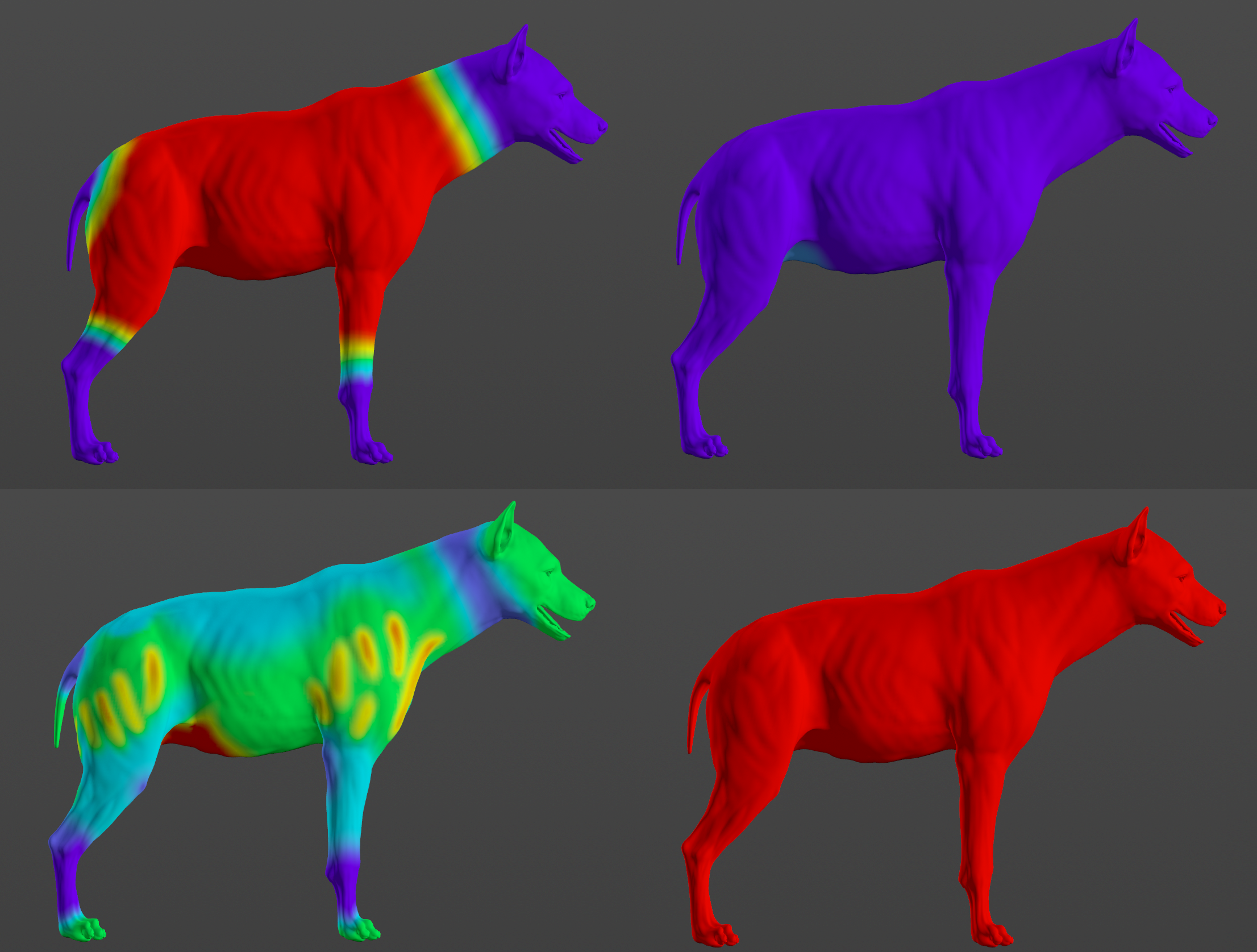
Figure 11: Example of painted weights on the skin of the Hyena. First row, from left to right: deformer weights and hard constraint weights. Second row, from left to right: push multiplier weights and weights flooded to 1.0 for the rest of the maps.
In order to better visualize deformer constraints and attributes in the Houdini viewport there is the option to enable the debugger, found in the dropdown menu labeled Debug in the Attribute Editor.
To enable the debugger the Debug checkbox must be marked. To select the specific feature you would like to visualize, choose it from the list provided in Features. The features that can be visualized with the debugger in the AdnSmartTissue deformer are:
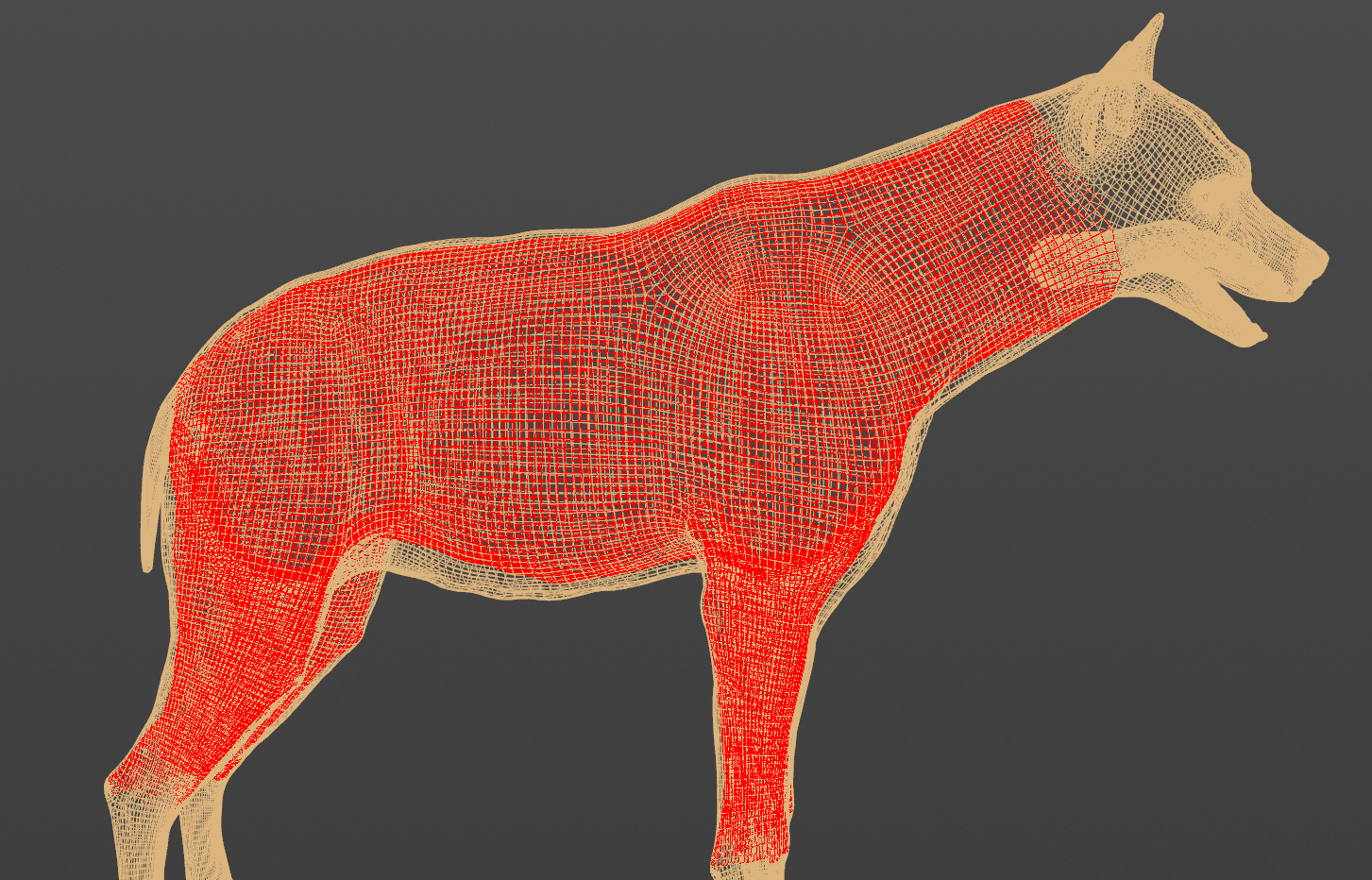
Inner Mesh: A wireframe representation of the inner mesh will be drawn.
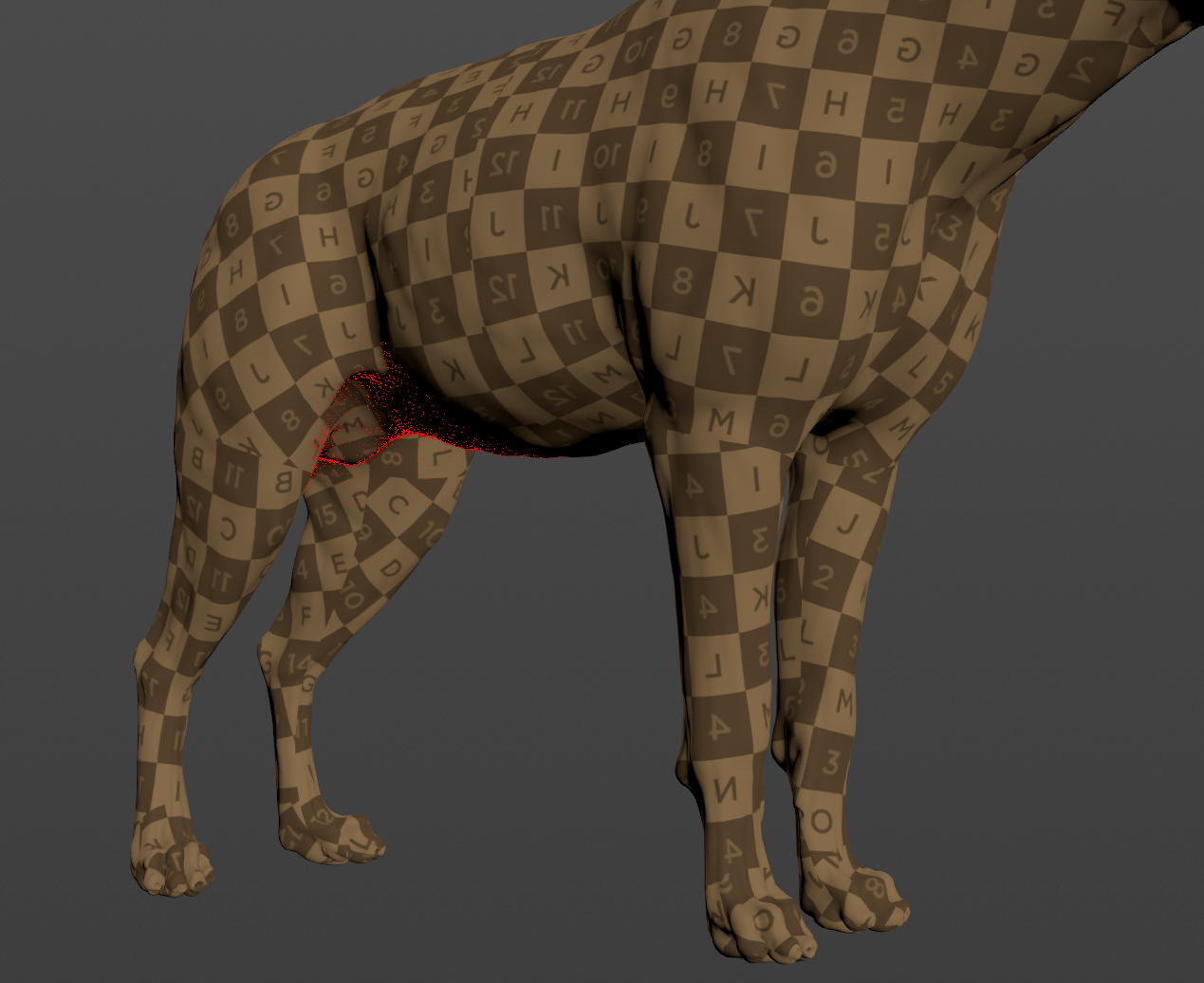
Hard Constraints: For each vertex on the simulated mesh and each virtual point that belongs to an internal layer, a line will be drawn from the point to the corresponding closest point on the base mesh if its Hard Constraints weight is greater than 0.0.
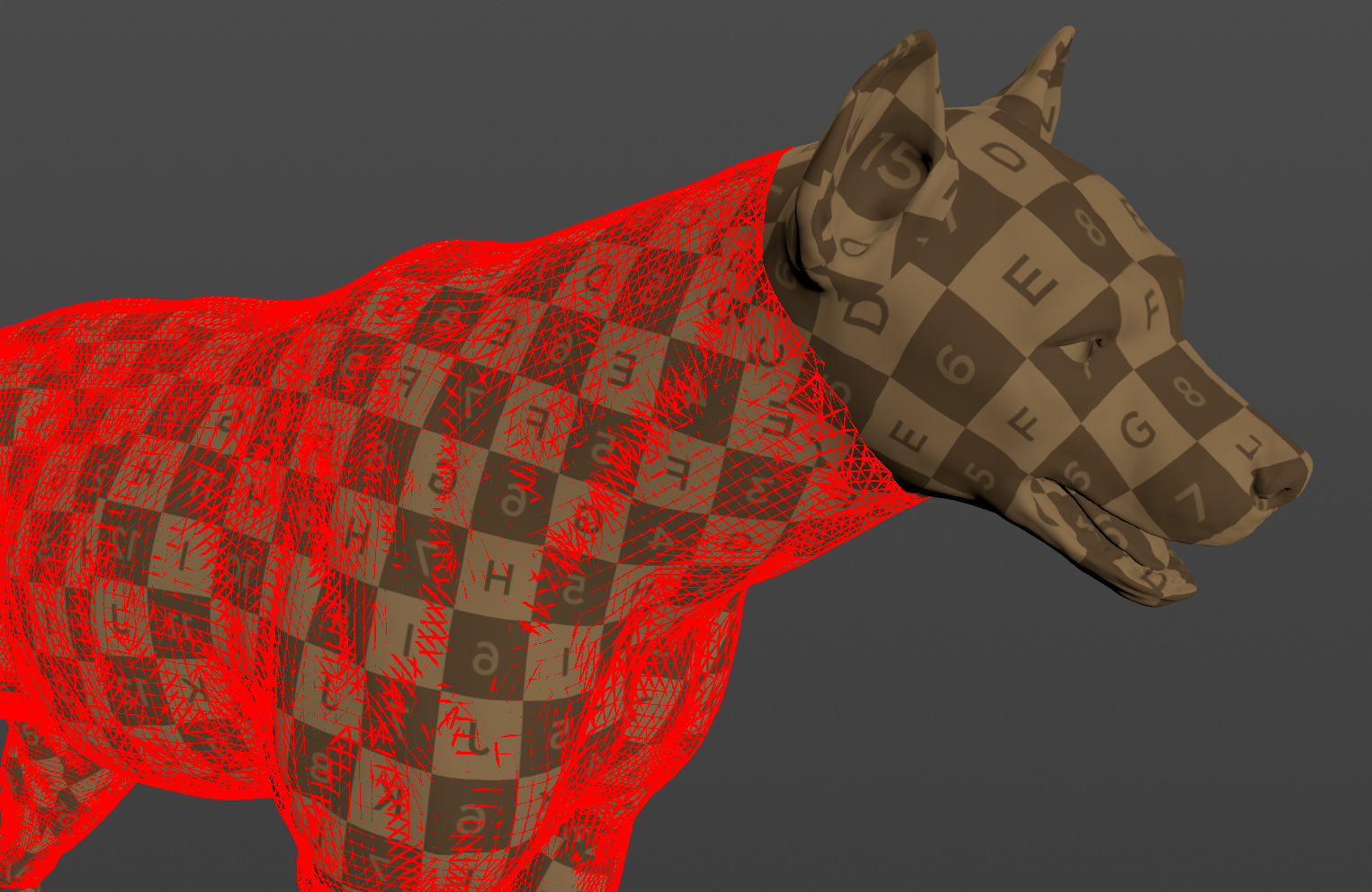
Shape Preservation: For each vertex with a shape preservation weight greater than 0.0, a line will be drawn from each adjacent vertex to the opposite adjacent vertex.
Volume Structure: A line will be drawn for every connection between two points in the volume. A point can be either a vertex on the inner mesh, a vertex on the simulated mesh or a virtual point that belongs to an internal layer generated by the procedural construction based on the Divisions attribute.