
UI Overview
The Adonis UI for Maya can be separated into two main elements presented in this page: the Adonis Shelf and the Adonis Menu.
Adonis Shelf
The Adonis Shelf can be found in the Maya shelf tab under the label Adonis. It allows for quick access to the main Adonis functionalities.

| Icon | Description | Menu Shortcut |
|---|---|---|
 |
Creates an AdnLocator at the origin. This object is a standard Maya locator with a custom shape for better visualization in the viewport. | |
 |
Creates an AdnLocatorPosition from the selected transform node. The locator shape represents the position change of the element provided. Double click will launch a simple UI to provide a custom name for the node. | Adonis Menu > Create Locators > Position |
 |
Creates an AdnLocatorDistance from the two selected transform nodes. The locator shape represents the distance between the two elements provided. Double click will launch a simple UI to provide a custom name for the node. | Adonis Menu > Create Locators > Distance |
 |
Creates an AdnLocatorRotation from the three selected transform nodes. The locator shape corresponds to the angle between the two segments represented by the three nodes. Double click will launch a simple UI to provide a custom name for the node. | Adonis Menu > Create Locators > Rotation |
 |
Creates an AdnSensorPosition from the transform object and the AdnLocatorPosition selected. If only the transform node is provided, then both the locator and the sensor are created. Double click will launch a simple UI to provide a custom name for the node. | Adonis Menu > Create Sensors > Position |
 |
Creates an AdnSensorDistance from the two transform nodes and the AdnLocatorDistance selected. If only the transform nodes are provided, then both the locator and the sensor are created. Double click will launch a simple UI to provide a custom name for the node. | Adonis Menu > Create Sensors > Distance |
 |
Creates an AdnSensorRotation from the three transform nodes and the AdnLocatorRotation selected. If only the transform nodes are provided, then both the locator and the sensor are created. Double click will launch a simple UI to provide a custom name for the node. | Adonis Menu > Create Sensors > Rotation |
 |
Creates AdnRibbonMuscle deformer to the selected mesh. The deformer will be applied to the last element in the selection. Other elements in the list (optional) will be considered as target objects. Double click will launch a simple UI to assign a custom name and configure generic solver parameters. | Adonis Menu > Create Solvers > Ribbon Muscle |
 |
Creates AdnMuscle deformer to the selected mesh. The deformer will be applied to the last element in the selection. Other elements in the list (optional) will be considered as target objects. Double click will launch a simple UI to assign a custom name and configure generic solver parameters. | Adonis Menu > Create Solvers > Muscle |
 |
Assigns target objects to the selected deformer (utility compatible with AdnRibbonMuscle and AdnMuscle deformers). The mesh with the deformer applied must be the last element in the selection. | Adonis Menu > Edit Muscle > Add Targets |
 |
Removes target objects assigned to the selected deformer (utility compatible with AdnRibbonMuscle and AdnMuscle deformers). The mesh with the deformer applied must be the last element in the selection. | Adonis Menu > Edit Muscle > Remove Targets |
 |
Adds slide segments based on the two (or more) transform objects and the mesh with the deformer node applied (utility compatible with AdnRibbonMuscle and AdnMuscle deformers). The mesh must be the last element in the selection. | Adonis Menu > Edit Muscle > Add Slide On Segment |
 |
Removes slide segments assigned to the selected deformer (utility compatible with AdnRibbonMuscle and AdnMuscle deformers). The mesh with the deformer applied must be the last element in the selection. | Adonis Menu > Edit Muscle > Remove Slide On Segment |
 |
Creates an AdnGlue node and connects the selected geometries to the inputs array plug of the node. A new geometry will be generated as the result of gluing all the inputs together. | Adonis Menu > Create Solvers > Glue |
 |
Applies an AdnFat deformer to the selected mesh. The deformer will be applied to the second element in the selection, while the first element will be considered as base mesh. | Adonis Menu > Create Solvers > Fat |
 |
Creates AdnSkin deformer to the selected mesh. The deformer will be applied to the last element in the selection. Other elements in the list (optional) will be considered as target meshes. Double click will launch a simple UI to assign a custom name and configure generic solver parameters. | Adonis Menu > Create Solvers > Skin |
 |
Assigns target meshes to the selected AdnSkin deformer. The mesh with the deformer applied must be the last element in the selection. | Adonis Menu > Edit Skin > Add Targets |
 |
Removes target meshes assigned to the selected AdnSkin deformer. The mesh with the deformer applied must be the last element in the selection. | Adonis Menu > Edit Skin > Remove Targets |
 |
Applies an AdnRelax deformer to the selected mesh. | Adonis Menu > Create Deformers > Relax |
 |
Applies an AdnPush deformer to the selected mesh. | Adonis Menu > Create Deformers > Push |
 |
Applies an AdnMush deformer to the selected mesh. | Adonis Menu > Create Deformers > Mush |
 |
Launches the Create Skin Merge UI used to create an AdnSkinMerge deformer. | Adonis Menu > Create Deformers > Skin Merge |
 |
Applies an AdnSimshape deformer to the selected mesh. Double click will launch a simple UI to assign a custom name and configure generic solver parameters. | Adonis Menu > Create Solvers > Simshape |
 |
Adds a collider to AdnSimshape selecting the collider and the mesh with AdnSimshape applied. | Adonis Menu > Edit Simshape > Add Collider |
 |
Removes a collider from AdnSimshape selecting the collider and the mesh with AdnSimshape applied. | Adonis Menu > Edit Simshape > Remove Collider |
 |
Launches the Learn Muscle Patches UI used to generate the Adonis Muscle Patches file (.amp) file. | Adonis Menu > Edit Simshape > Learn Muscle Patches UI |
 |
Toggles the AdnSimshape activations debug mode. The current frame has to match the preroll or start frame in the AdnSimshape deformer for this toggle to work. | Adonis Menu > Edit Simshape > Activations Debugger |
 |
Opens the Adonis Paint Tool to modify the paintable maps in AdnSkin, AdnMuscle and AdnRibbonMuscle deformers. | Adonis Menu > Tools > Paint Tool |
 |
Enables Maya Interactive Playback. In this playback mode, dynamic interaction with objects and parameters while simulating is allowed. | Adonis Menu > Tools > Interactive Playback |
 |
Launches the Create ML Deformer UI used to create an AdnMLDeformer. | Adonis Menu > Create Deformers > ML Deformer |
 |
Launches the Create Smart Tissue UI used to create an AdnSmartTissue. | Adonis Menu > Create Solvers > Smart Tissue |
 |
Toggles the AdnSmartTissue activations debug mode. The current frame has to match the preroll or start frame in the AdnSmartTissue solver for this toggle to work. | Adonis Menu > Edit Smart Tissue > Activations Debugger |
 |
Opens the Data Extraction Tool UI to extract the data needed for the training. An Adonis ML license is required to use this tool. | Adonis Menu > ML Tools > Data Extraction |
 |
Opens the Neural Clustering Tool UI to train a model using the data extracted with the Data Extraction Tool. An Adonis ML license is required to use this tool. | Adonis Menu > ML Tools > Neural Training |
 |
Opens the Neural Clustering Paint Tool UI to define the clusters needed for the training. An Adonis ML license is required to use this tool. | Adonis Menu > ML Tools > Neural Clustering Paint Tool |
Adonis Menu
The Adonis Menu provides access to the options in the shelf and other more advanced utilities that are organized in six groups: Create, Edit, Tools, I/O, License and Help.
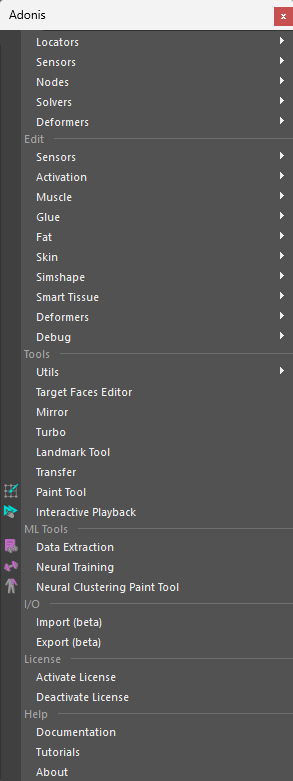
Create Section
Locators
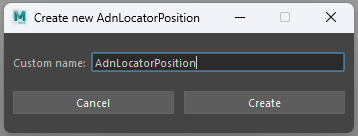
- Position. Creates an AdnLocatorPosition from the selected transform node. The locator shape represents the position change of the element provided. Double click will launch a simple UI to provide a custom name for the node. This item corresponds to the shelf button .
- Distance. Creates an AdnLocatorDistance from the two selected transform nodes. The locator shape represents the distance between the two elements provided. Double click will launch a simple UI to provide a custom name for the node. This item corresponds to the shelf button .
- Rotation. Creates an AdnLocatorRotation from the three selected transform nodes. The locator shape corresponds to the angle between the two segments represented by the three nodes. Double click will launch a simple UI to provide a custom name for the node. This item corresponds to the shelf button .
Sensors
- Position. Creates an AdnSensorPosition from the transform object and the AdnLocatorPosition selected. If only the transform nodes are provided, then both the locator and the sensor are created. Double click will launch a simple UI to provide a custom name for the node. This item corresponds to the shelf button .
- Distance. Creates an AdnSensorDistance from the two transform nodes and the AdnLocatorDistance selected. If only the transform nodes are provided, then both the locator and the sensor are created. Double click will launch a simple UI to provide a custom name for the node. This item corresponds to the shelf button .
- Rotation. Creates an AdnSensorRotation from the three transform nodes and the AdnLocatorRotation selected. If only the transform nodes are provided, then both the locator and the sensor are created. Double click will launch a simple UI to provide a custom name for the node. This item corresponds to the shelf button .
Both in Locators and Sensors there are option boxes to launch a simple UI to provide a custom name for the node to create.
Nodes
- Edge Evaluator. Creates an AdnEdgeEvaluator node from two selected meshes with the same topology.
- Activation. Creates an AdnActivation node. If meshes with a muscle deformer applied are provided in the selection, the new AdnActivation node will be connected to the activation plug of those deformers.
Solvers
- Simshape. Applies an AdnSimshape deformer to the selected mesh. This item corresponds to the shelf button .
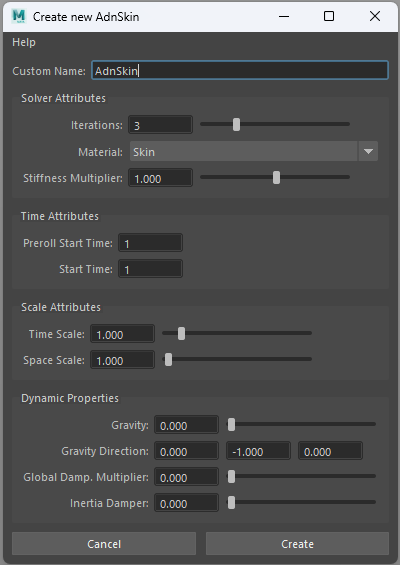
- Skin. Creates an AdnSkin deformer to the selected mesh. This item corresponds to the shelf button .
- Fat. Applies an AdnFat deformer to the selected mesh. The deformer will be applied to the second element in the selection. The first element will be considered as base mesh. This item corresponds to the shelf button .
- Ribbon Muscle. Creates AdnRibbonMuscle deformer to the selected mesh. The deformer will be applied to the last element in the selection. Other elements in the list (optional) will be considered as attachment objects. This item corresponds to the shelf button .
- Muscle. Creates AdnMuscle deformer to the selected mesh. The deformer will be applied to the last element in the selection. Other elements in the list (optional) will be considered as attachment objects. This item corresponds to the shelf button .
- Glue. Creates an AdnGlue node and connects the selected geometries to the inputs array plug of the node. A new geometry will be generated as the result of gluing all the inputs together. This item corresponds to the shelf button .
- Smart Tissue. Launches the Create Smart Tissue UI used to create an AdnSmartTissue deformer. This item corresponds to the shelf button .
Deformers
- Relax. Applies an AdnRelax deformer to the selected mesh. This item corresponds to the shelf button .
- Push. Applies an AdnPush deformer to the selected mesh. This item corresponds to the shelf button .
- Mush. Applies an AdnMush deformer to the selected mesh. This item corresponds to the shelf button .
- Closest Fit. Applies an AdnClosestFit deformer to the selected mesh. The deformer will be applied to the last element in the selection. Other elements in the list (optional) will be considered as targets. This item corresponds to the shelf button
 .
. - Radial Wrap. Applies an AdnRadialWrap deformer to the selected mesh. The deformer will be applied to the last element in the selection. Other elements in the list (optional) will be considered as targets. This item corresponds to the shelf button
 .
. - Rigid Wrap. Applies an AdnRigidWrap deformer to the selected mesh. The deformer will be applied to the last element in the selection. Other elements in the list (optional) will be considered as targets. This item corresponds to the shelf button
 .
. - Soft Wrap. Applies an AdnSoftWrap deformer to the selected mesh. The deformer will be applied to the last element in the selection. Other elements in the list (optional) will be considered as targets. This item corresponds to the shelf button
 .
. - Skin Merge. Launches the Create Skin Merge UI used to create an AdnSkinMerge deformer. This item corresponds to the shelf button .
- ML Deformer. Launches the Create ML Deformer UI used to create the AdnMLDeformer. This item corresponds to the shelf button .
Option boxes can be used to launch a UI to assign the name to the deformer and configure generic solver parameters.
Edit Section
Sensors
- Connection Editor. Launches the Sensors Connection Editor UI. This tool will assist with the connection of the locators and sensors output plugs with the Adonis deformer nodes.
Activation
-
Remove Inputs: Removes activation inputs from AdnActivation node(s) and from the activation list attribute of muscle deformers (AdnMuscle and AdnRibbonMuscle). On execute, this option reads the current selection and extracts all AdnActivation nodes and muscle deformers to remove inputs from. It is possible to remove all the inputs or only some of them.
- To remove all inputs, select directly the AdnActivation node(s) and/or the mesh(es) with a muscle deformer applied.
- To remove specific inputs, first select the locator(s) to remove and then the AdnActivation node(s) and/or the mesh(es) with a muscle deformer applied.
Muscle
- Add Targets. Adds target objects to the selected muscle. The mesh with the deformer applied must be the last element in the selection. This item corresponds to the shelf button .
- Remove Targets. Removes target objects from the selected muscle. The mesh with the deformer applied must be the last element in the selection. If only the muscle geometry is selected, then all targets are removed. This item corresponds to the shelf button .
- Add Slide On Segment Constraint. Adds segments based on the two (or more) transform objects and the mesh with the deformer node applied selected. This item corresponds to the shelf button .
- Remove Slide On Segment Constraint. Removes anchors from segments based on the transform objects and the mesh with the deformer node applied selected. This item corresponds to the shelf button .
- Add Rest Shape. Assigns the rest shape to the selected deformer. The selection must consist of: first the Rest Mesh to assign and lastly the mesh with the deformer applied.
- Remove Rest Shape. Removes the rest shape from the selected deformer. The selection must consist of: first the Rest Mesh to remove and lastly the mesh with the deformer applied.
- Draw Fibers. Enables Muscle Fibers Debugging from all the AdnRibbonMuscle and AdnMuscle in the scene.
- Hide Fibers. Disables Muscle Fibers Debugging from all the AdnRibbonMuscle and AdnMuscle in the scene.
Glue
- Add Inputs. Adds input meshes to an existing AdnGlue node. The output mesh of the destination AdnGlue has to be the last object selected.
- Remove Inputs. Removes input meshes from an existing AdnGlue node. The output mesh of the destination AdnGlue has to be the last object selected. If only the glue output mesh is selected, then all inputs will be removed.
Fat
- Add Base Mesh. Assigns a base mesh to the selected fat. The selection must consist of: first the mesh to assign as Base Mesh and lastly the mesh with the deformer applied.
- Remove Base Mesh. Removes the base mesh from the selected fat. The selection must consist of: the mesh with the deformer applied.
Skin
- Add Targets. Adds target meshes to the selected skin. The mesh with the deformer applied must be the last element in the selection. This item corresponds to the shelf button .
- Remove Targets. Removes target meshes from the selected skin. The mesh with the deformer applied must be the last element in the selection. If only the skin geometry is selected, then all targets are removed. This item corresponds to the shelf button .
Simshape
- Learn Muscle Patches UI. Launches the Learn Muscle Patches UI required to generate the Adonis Muscle Patches (.amp) file. This item corresponds to the shelf button .
- Activations Debugger. Toggles the AdnSimshape activations debug mode. The current frame must match the specified initialization frame at the AdnSimshape deformer to toggle. This item corresponds to the shelf button .
- Add Collider. Assigns the collider to the selected deformer. The selection must consist of: first the mesh to assign as a Collider and lastly the mesh with the deformer applied. This item corresponds to the shelf button .
- Remove Collider. Removes the collider from the selected deformer. The selection must consist of: first the Collider mesh to remove and lastly the mesh with the deformer applied. This item corresponds to the shelf button .
- Add Rest Collider. Assigns the collider at rest to the selected deformer. The selection must consist of: first the mesh to assign as a Rest Collider and lastly the mesh with the deformer applied.
- Remove Rest Collider. Removes the collider at rest from the selected deformer. The selection must consist of: first the Rest Collider mesh to remove and lastly the mesh with the deformer applied.
- Add Rest Mesh. Assigns the rest mesh to the selected deformer. The selection must consist of: first the Rest Mesh to assign and lastly the mesh with the deformer applied.
- Remove Rest Mesh. Removes the rest mesh from the selected deformer. The selection must consist of: first the Rest Mesh to remove and lastly the mesh with the deformer applied.
- Add Deform Mesh. Assigns the deform mesh to the selected deformer. The selection must consist of: first the Deform Mesh to assign and lastly the mesh with the deformer applied.
- Remove Deform Mesh. Removes the deform mesh from the selected deformer. The selection must consist of: first the Deform Mesh to remove and lastly the mesh with the deformer applied.
- Add Anim Mesh. Assigns the animated mesh to the selected deformer. The selection must consist of: first the Anim Mesh to assign and lastly the mesh with the deformer applied.
- Remove Anim Mesh. Removes the animated mesh from the selected deformer. The selection must consist of: first the Anim Mesh to remove and lastly the mesh with the deformer applied.
- Connect Activations Plug. Connects the output compression map from an AdnEdgeEvaluator node to the activations plug of the AdnSimshape selected deformer. The selection must consist of: first the Edge Evaluator node and lastly the AdnSimshape deformer node.
- Disconnect Activations Plug. Disconnects the output compression map from an AdnEdgeEvaluator node from the activations plug of the AdnSimshape selected deformer. The selection must consist of: first the Edge Evaluator node and lastly the AdmSimshape deformer node.
Smart Tissue
- Activations Debugger. Toggles the AdnSmartTissue activations debug mode. The current frame must match the specified initialization frame at the AdnSmartTissue deformer to toggle. This item corresponds to the shelf button .
Deformers
- Edit Skin Merge. Launches the Edit Skin Merge UI. This tool will assist with the editing of simulation and animation meshes lists of an AdnSkinMerge deformer. To open this UI a mesh with an AdnSkinMerge applied must be selected.
Debug
- Refresh Debugger. Refreshes the scene graph for debugging purposes by making sure the AdnDataNode and the AdnDebugLocator exist in the scene and are properly connected.
Tools section
-
Utils > Clear. Removes all Adonis nodes from the scene.
-
Utils > Upgrade v1.x To v2.x. Performs an upgrade to all Adonis solvers to make v1.x rigs compatible with v2.x. This upgrade affects the painted values in the maps that are affected by the Maps Remap Mode attribute added in v2.0.0 to all solvers (i.e., shape preservation, attachments and sliding in muscle solver, uber constraints in skin solver). Due to how this remapping modifies how the painted values from the plugs are transferred to the solver, this utility updates those values in order to get simulation results as consistent as possible with v1.x. Additionally, since the Concrete material has been deprecated, this upgrade script also checks whether any nodes in the scene are using an invalid material. If an invalid material is found, it will be automatically replaced with the default material. As a final step to support the addition of the currentTime plug in AdnSkinMerge we provide inside of the upgrade process a way to connect the time1.outTime to every node that has a currentTime plug.
-
Utils > Reconnect Current Time. Connects the time1.outTime plug to all the Adonis nodes that have a currentTime plug for correct time dependency for its evaluation.
-
Utils > Reconnect Original Geometry. Connects the original shape to the originalGeometry plug of all the Adonis deformers.
-
Utils > Install ML Dependencies. Installs the Python dependencies required to run Adonis ML training, and also to run the ML inference in AdnMLDeformer and AdnSmartTissue on the GPU.
-
Target Faces Editor. Opens the Target Faces Editor UI, which allows to include or exclude specific target faces from the constraint creation. This tool is only available for AdnMuscle, AdnRibbonMuscle and AdnSkin solvers.
-
Mirror. Opens the Mirror Tool UI which allows to mirror the muscle setup (locators, sensors and muscles) from one side of the character to the other based on left and right naming rules.
-
Turbo. Opens the Turbo UI, which allows users to build an Adonis rig on a clean asset from scratch. The UI is divided into sections for each simulation layer that the AdnTurbo can configure. Users can toggle layers on or off to include or skip them in the execution and select the scene objects required to create and configure the solvers.
-
Landmark Tool. Opens the Landmark Tool UI which allows to create, edit, manage, and connect landmarks to an AdnRadialWrap deformer.
-
Transfer. Opens the AdnTransfer UI, which allows users to transfer the anatomy of muscles, fascia, fat, and skin cut geometries after morphing the mummy and skin geometries using AdnRadialWrap.
-
Paint Tool. Opens the Paint Tool UI to modify the paintable maps in AdnSkin, AdnMuscle and AdnRibbonMuscle deformers. This item corresponds to the shelf button
. -
Interactive Playback. Enables Maya Interactive Playback. In this playback mode, dynamic interaction with objects and parameters while simulating is allowed. This item corresponds to the shelf button
.
ML Tools
- Data Extraction. Opens the Data Extraction Tool UI, which allows to extract the simulation data needed for the training. This items corresponds to the shelf button .
- Neural Training. Opens the Neural Training Tool UI, which allows to train a model using the data extracted with the Data Extraction Tool. The resulting model can later be used by AdnMLDeformer and AdnSmartTissue. This items corresponds to the shelf button .
- Neural Clustering Paint Tool. Opens the Neural Clustering Paint Tool UI, which allows to paint the clusters needed for the training. This items corresponds to the shelf button .
I/O section
- Import (beta). Opens the Import UI which allows to import an Adonis rig from a file in disk into the scene.
- Export (beta). Opens the Export UI which allows to export an Adonis rig from the scene into a file in disk.
License section
- Activate License. Checks the license status and if it is not activated yet, then a dialog will be prompted to guide on the product key registration. This functionality is only available in the Interactive Node-Locked license.
- Deactivate License. Checks the license status and if it is activated, a dialog will be prompted asking confirmation before closing Maya. This functionality is only available if the license is Node-Locked.
Help section
- Documentation. Opens the Adonis technical documentation on a web browser.
- Tutorials. Opens the Adonis tutorials on YouTube on a web browser.
- About. Launches the Adonis About dialog with version information and credits.
An Adonis ML license is required to use the following tools: Data Extraction Tool, Neural Training Tool and Neural Clustering Paint Tool.